

Everything seems to be Copilot this, and Copilot that nowadays. I have not been writing about Copilots previously, as there has been enough hype about Copilots as it is. However, since it has been around for a while now, I felt that maybe now it’s time to hop on to the Copilot wagon, and get as many of you onboard as possible from the Dynamics 365 Sales perspective.
Official information about setup and usage seems a bit scattered, so hopefully i’m able to combine the essentials into this article. I’m not gonna deepdive all the prebuilt prompts, but hopefully give you enough understanding and clarity about what is out there, and how to do the configuration to maximize your usage of Copilot in Dynamics 365 Sales. I will try to do more deep dives later down the road 😉
Initial setup
I’m starting from the assumption that the prerequisities for Copilot in Dynamics 365 Sales are met, and Copilot is available in your region.
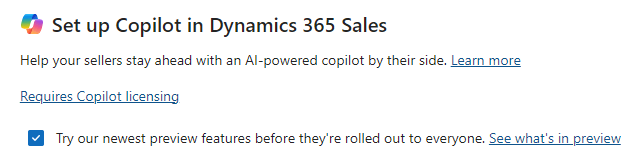
To get started with Copilot in Dynamics 365 Sales, you should first check the initial setup of the Copilot by browsing to the App Settings in Sales Hub, and clicking Copilot.
In the setup page, you want to start with checking the “Try our newest preview features before they’re rolled out to everyone” -checkbox. This setting takes immediate effect, and enables you to experience with the current preview features right away, and ensure you get those firsthand also in the future.
You should also have Dataverse search enabled. This should be the case for most environments, as it has been set to On by default since 2021. But it is worth to check this from environment settings, it can be found under the Features.

It’s possible to select individually, that which apps do you want to have specific Copilot features enabled. There is a global setting for “All Dynamics 365 Sales apps”, which affects all the individual application settings under the “Manage apps” -section of the setup page.
If you want to explicitly make sure Copilot is enabled for all apps, I suggest you switch it globally “On” instead of the “Default” -setting.
Note, if you change a setting under the “Manage apps” -section which is different from the global setting, the global setting will show as “Custom”. It just indicates that there is one or more setting which differs from the global.

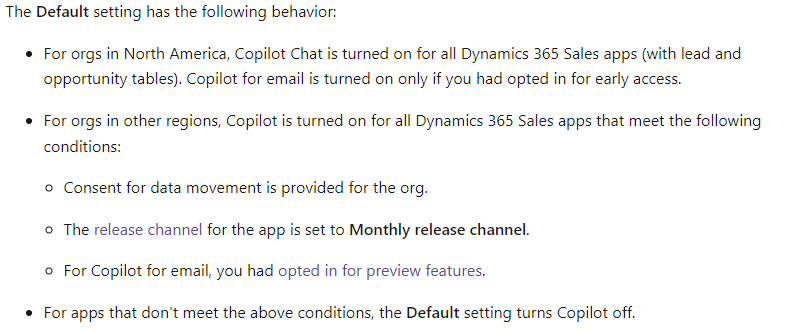
If you go with “Default” -setting, it has a pitfall if you are not having the release channel set to “Monthly release channel” for the application. If you have Copilot feature setting as “Default”, and you don’t see the features, this might be the reason.
However if you still have your model-driven app set to “Auto” release channel, this shouldn’t be an issue later this year, as “Auto” will mean monthly channel as per 2024 Release Wave 2.
Other reasons vary, but if your environment resides in Europe, it’s also possible that consent for data movement has not been given, which is mandatory for Copilot to operate.
Make sure to check Microsoft’s definition of the default setting behaviour below.
Opportunity related settings
In the Opportunity it’s possible to have an “Opportunity Summary” made by Copilot as a widget in your form. It is not turned on by default, but you can access it under the Opportunity settings inside Copilot settings.
Note: It’s the same summary which you are also able to access by opening Copilot in the sidepane. But of course it’s much cooler to get it embedded into the form, so let’s do that 😉

By default the widget shows up above the Up next -widget, if you are using the out-of-the-box form for Opportunity.
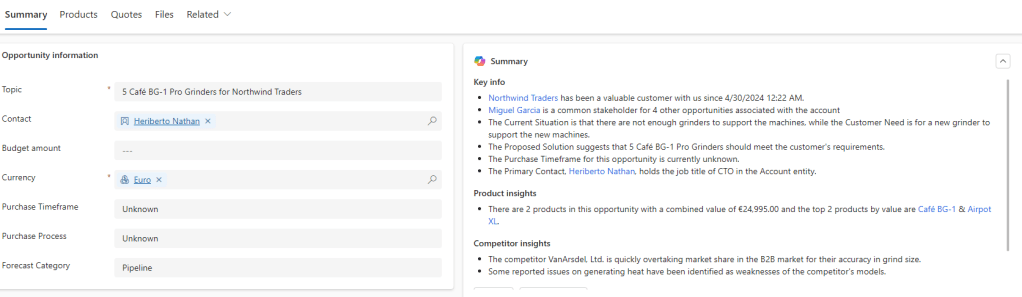
Note that there is also “Highlights” by Copilot in the Timeline, which is not to be confused with the Opportunity Summary widget.

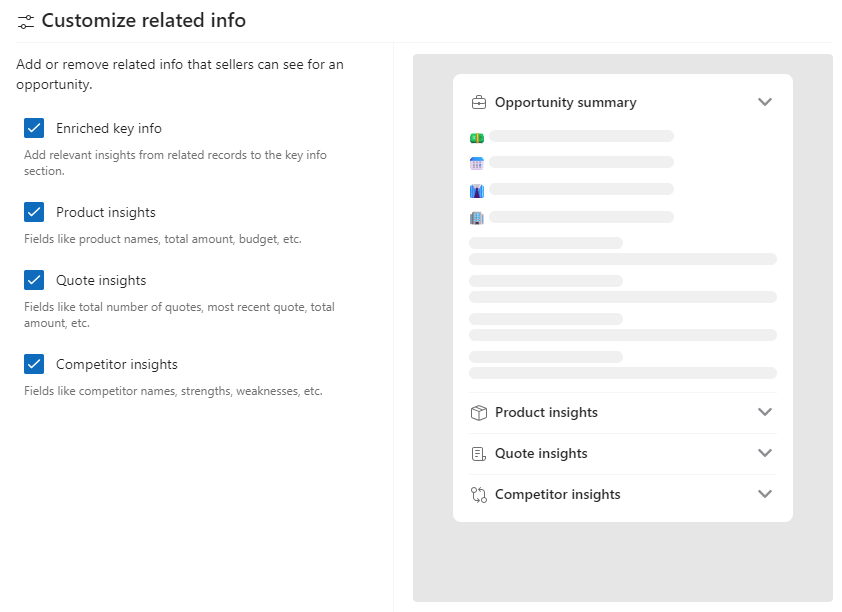
You can also configure what you want to show in the Opportunity Summary. Click on the “Customize related info” to access the configuration
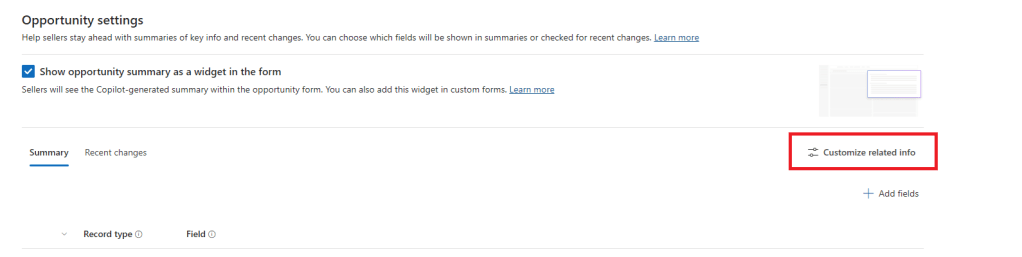
There isn’t that many things you can customize in this, but you can select / de-select different sections in the Opportunity Summary.
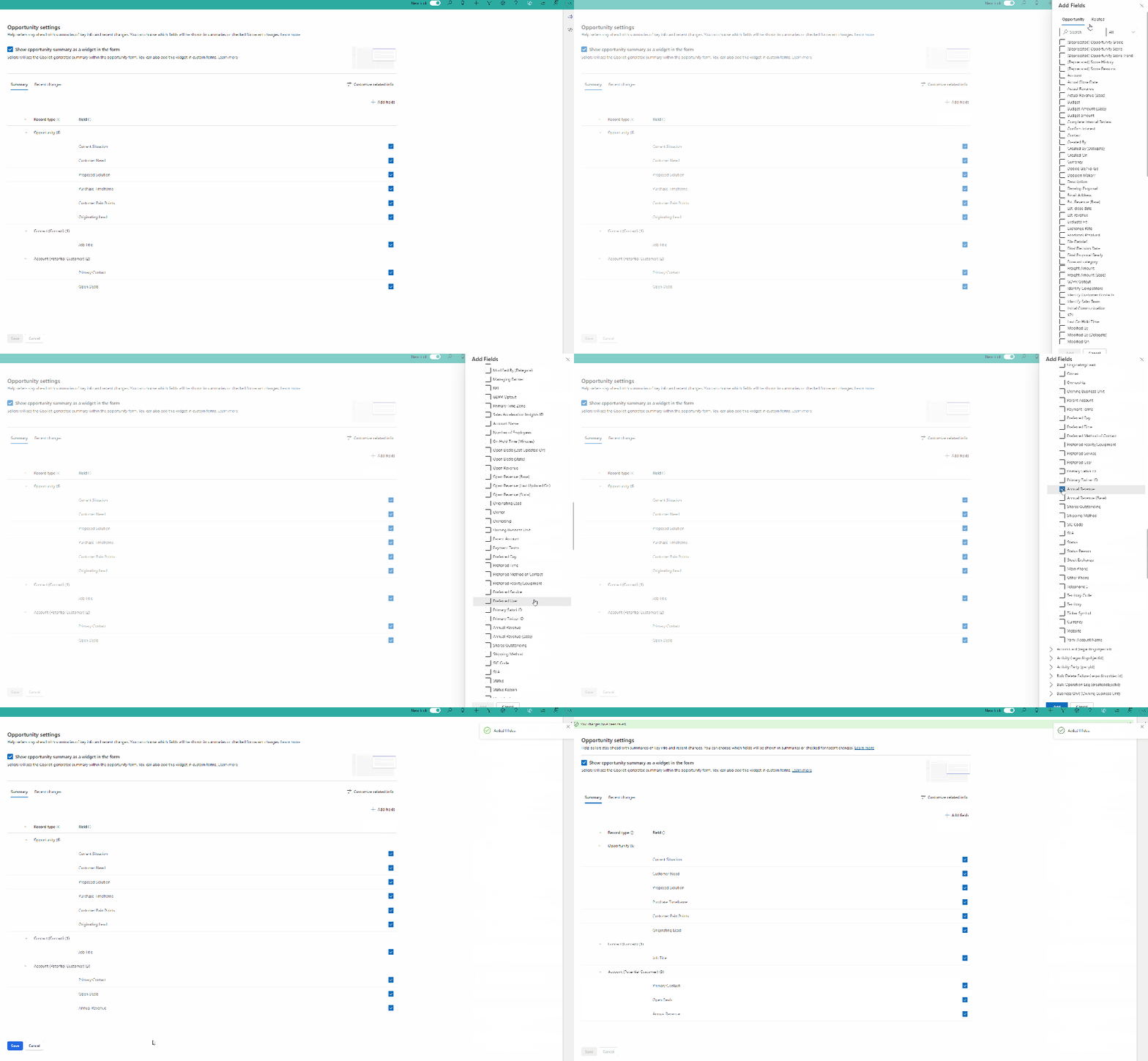
For more accurate configuration of the summary, you can more fields to be included in the summary. Let’s add Annual Revenue to the configuration.
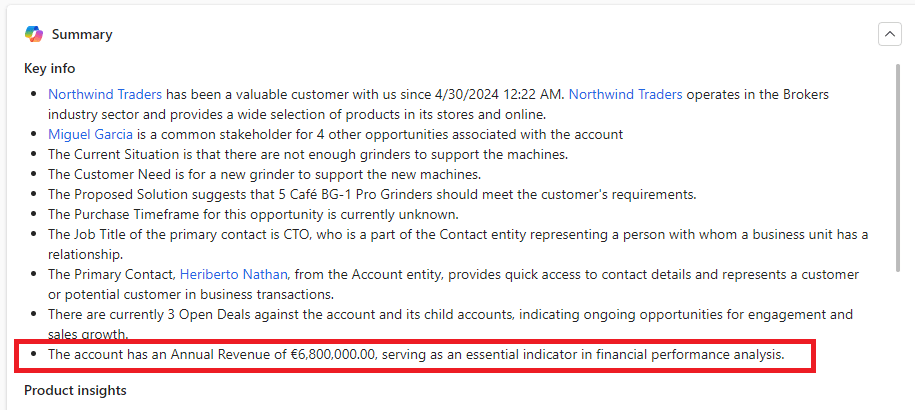
If you now go to refresh your Opportunity, you can see that the field is immeditially available in the freshly generated summary.
I would advice to keep the amount of fields reasonable, as the summary can easily expand to be quite lengthy, and at a certain point it will become useless as it’s bloated with info. It’s suggested by microsoft to agree on the top 10 fields max to be included in the summary. So handle with care 🙂
Lead and Account summary
For Account summary, the configuration for summary is exactly the same as for Opportunity, meaning that you can configure the summary on the field level, and also for the summary sections. Only difference is that you cannot embed Account Summary as a widget just yet. For the leads, there is no summary configuration except for the fields which to include.
For Accounts, the following sections are available for related info.
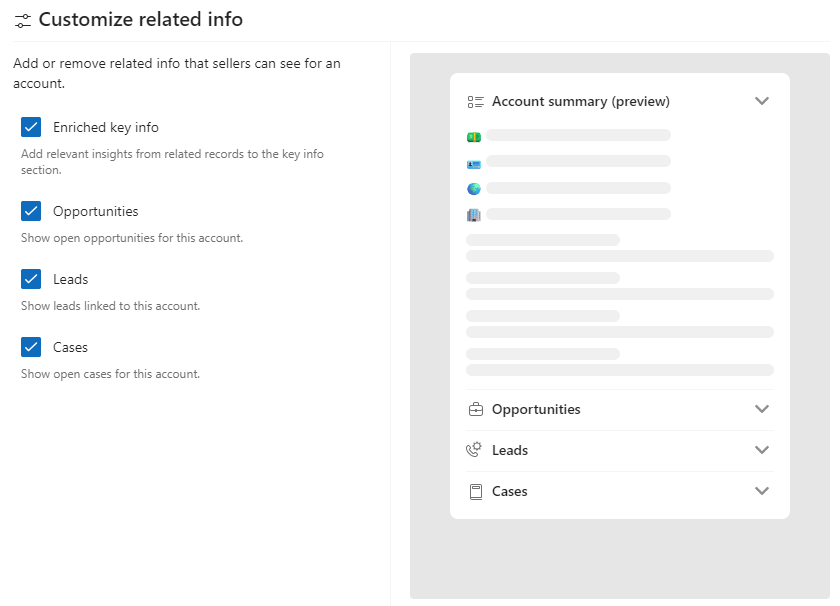
It is to be noted though, that for Lead and Account, the summary is currently only available in the Copilot sidepane.
Recent changes
Copilot can help you review recent changes on Account, Lead and Opportunity tables. In order to be able to prompt this, you need to ensure you have auditing enabled for Account, Lead and Opportunity tables. Copilot fetches the changes from audit history, so you need to have auditing enabled for those tables. Otherwise there is no data for Copilot to show about recent changes.
You can configure the fields in the same settings view as for the Summary, you just have to click on the “Recent Changes” -tab.
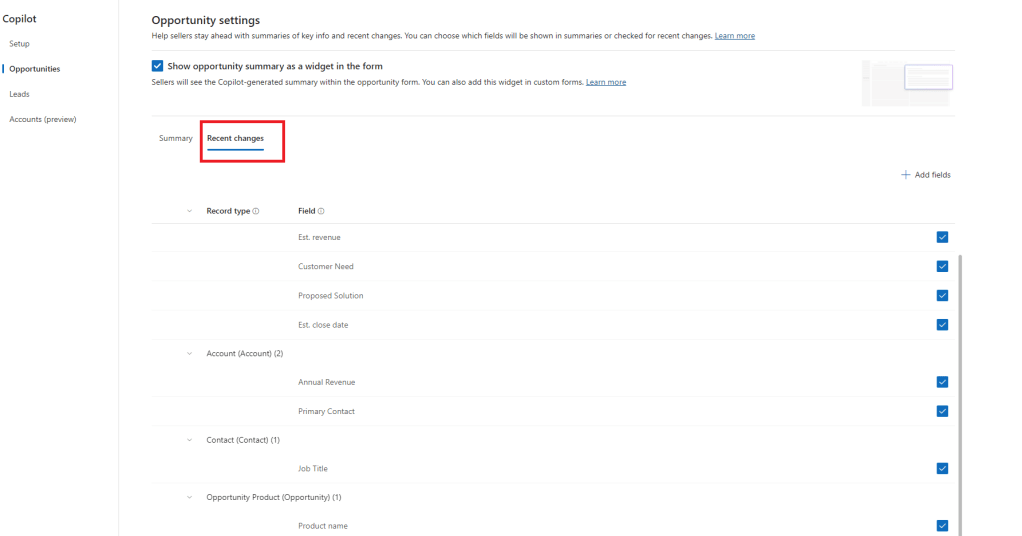
PS. I really love ❤ the fact that Copilot configuration uses the term “Field” instead of “Column” 😉 Can you bring back “Entity” next, please?
#neverforget
#more_work_for_MS_renaming_department
Prebuilt prompts
With the configuration above done, you should be ready to start using Copilot with the prebuilt prompts. This is most common approach to the Copilot, and obviously the fastest way to start using Copilot. Best way to familiarize yourself is to start experimenting with these prompts.
There are multiple prompts already available, and they are divided into three categories
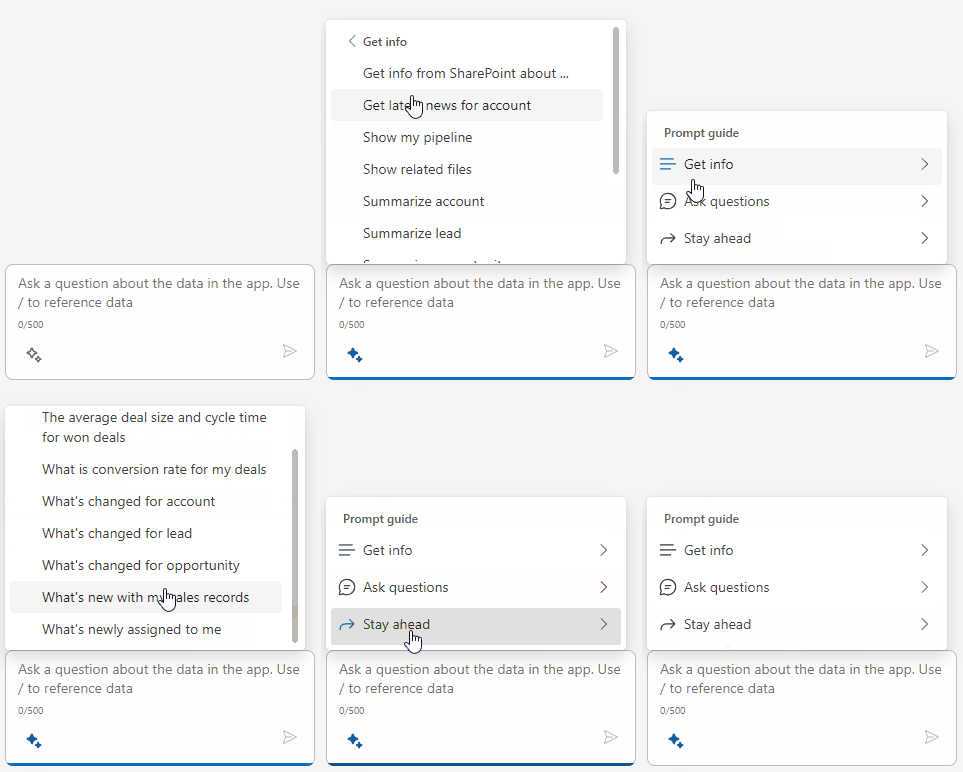
Get information -section is mainly related to data summaries and specific data query related to your records.
Stay ahead -section is focused in meetings and emails, and will require connecting to your Outlook.
Ask questions -section is mostly related to showing changes about the records of interest. It’s to be noted that some of the prompts require the records to be owned by you. But this goes also for many of the other prompts as well, and is purely dependant on what kind of data are you looking for. Is it containing “for my” as part of the prompt or not.
Preview features
At the time of writing this, there are four preview features available for Copilot in Dynamics 365 Sales
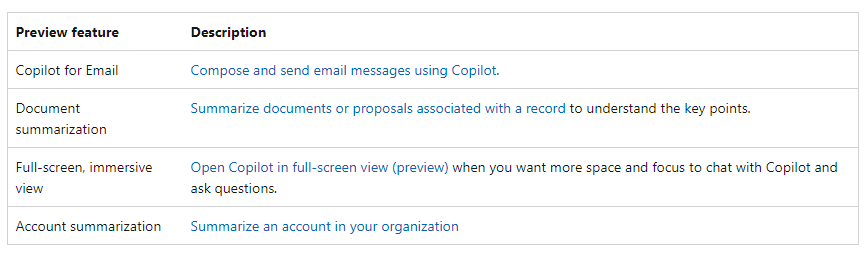
We already had a look on the account summarization while going through the configuration.
Copilot for Email
To access this capability, you need to have an email draft open. After you opened an email, the tab becomes accessible and Copilot promps you to desribe the email you want.
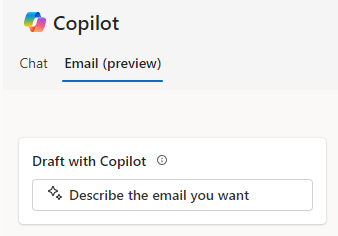
Give a short prompt and let the Copilot do it’s magic.
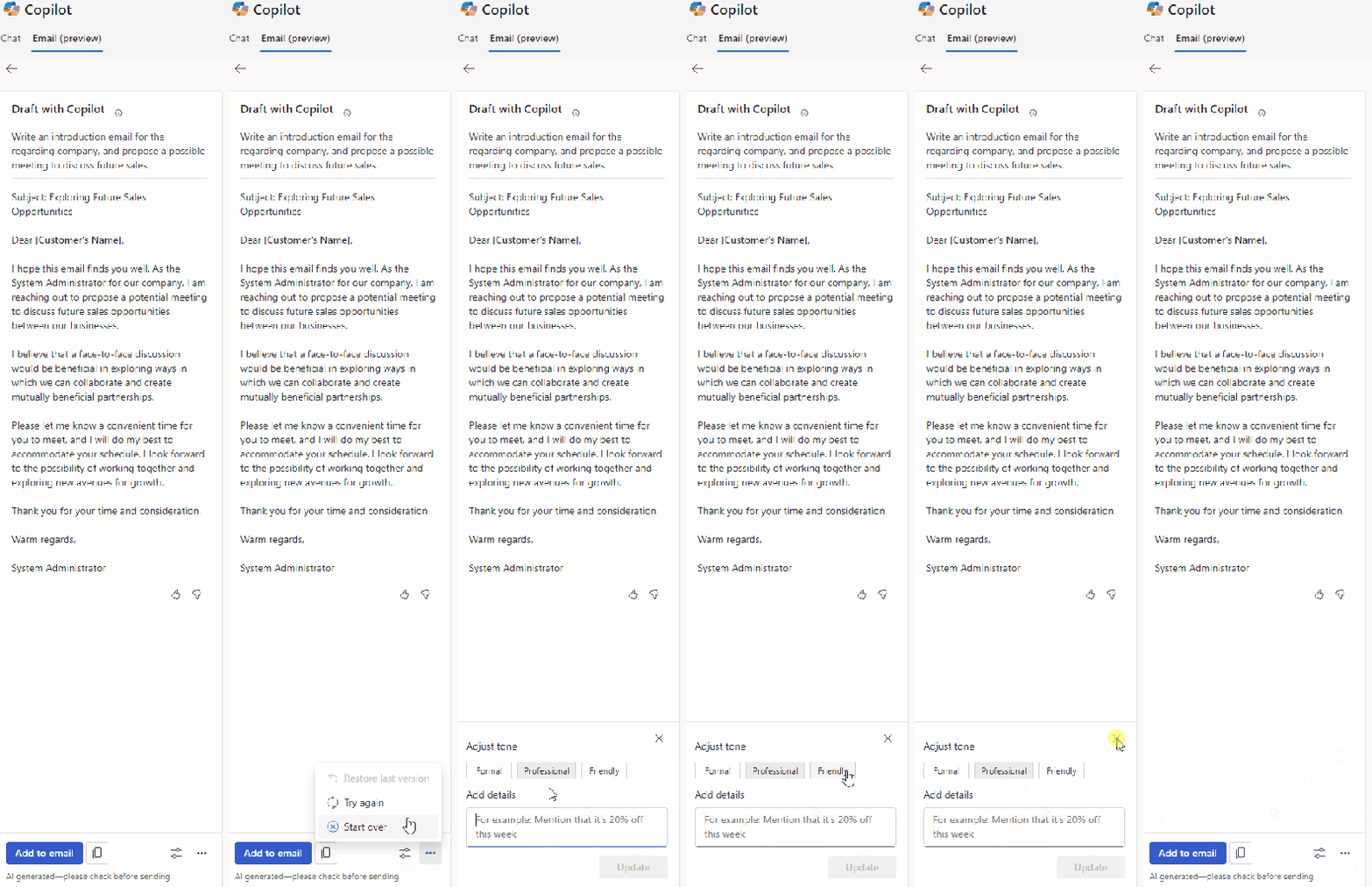
If you want to adjust the draft, you can select a different tone or add details to the email. Once you are satisfied with the outcome, just click Add to email and the content is basically copypasted into your email draft.
Full-screen view
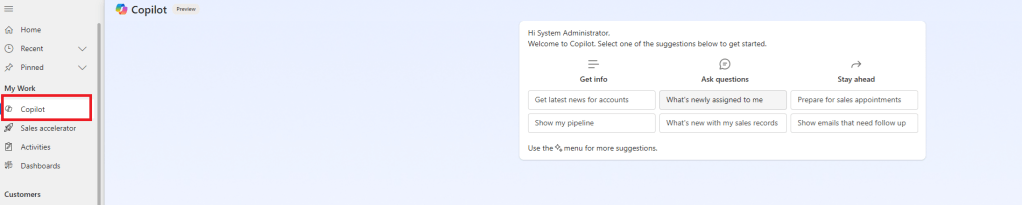
This feature is basically the Copilot from sidepane moved into the sitemap, and the view is full-screen instead of that small sidepane. It’s actually really nice! Not ground breaking, but definitely a qualify-of-life update for the UX.
Final thoughts
With Copilot being out there for awhile now, there still were some hickups when I tried to take screenshots and animations about the configuration. Could be just high load on the service, or the nature of the environment I was using for experimenting.
Tackling the subject only from Dynamics 365 for Sales -perspective is only a small fraction of the total capability of what Copilot is already capable of doing.
Can’t wait for the Copilots to evolve even further, and for Microsoft to bring even more capabilities into the offering. We definitely are living interesting times 🙂
 Dynamics Infinite - Blog by Tuomas Anto