
I frequently get questions about connection references, what does the pre-population mean regarding the release pipelines in Azure DevOps and how exactly this should be done. I thought this would be an excellent topic to write about, as it still is a theme that causes questions and concerns.
What exactly are connection references?
How Microsoft describes connections and connection references:
“A connection is a proxy or a wrapper around an API that allows the underlying service to talk to Microsoft Power Automate, Microsoft Power Apps, and Azure Logic Apps. It provides a way for users to connect their accounts and use a set of pre-built actions and triggers to build their apps and workflows.“
“A connection reference is a solution component that contains information about a connector. Both canvas app and operations within a Power Automate flow bind to a connection reference“
Connections are not solution aware, so you cannot move them in solutions. Connection References have been created for this specific purpose. You could think Connection Reference as a pointer for a specific connection, which you move between environments in solutions. When the solution is imported, it will then associate the connection reference with the connection it was pointing to.
Connection references don’t however contain any credentials, as those are always configured with the connection itself. Also good to note, that you could for example only need one connection for Dataverse, with one connection reference, but could have multiple flows associated with the same connection reference.
So why does it matter in Azure DevOps pipelines?
Typical problem that could come up if you don’t handle connection references correctly, could be Cloud Flows turning itself off after deployment.
If you do solution import manually, you are probably familiar with the prompt of re-establishing connections. As with fully automated ALM pipelines, doing steps manually is out of the question. Here you can see the prompt you would normally get when importing the solution through the maker portal UI.

This is also the most common reason why the Cloud Flow remains in Off-status after deployment, or a Cloud Flow that used to be in On-status is in Off-status after being deployed with Azure DevOps release pipeline. Let me show you what you need to do, to avoid this happening in your ALM pipeline.
How to correctly pre-populate connection references with deployment settings
Solution for this problem, and to fully automate your pipeline is to pre-populate connection references with deployment settings, and passing on the deployment settings as JSON -file when importing solution with Power Platform Build Tools.
Let’s first create the deployment settings file. I have found the most convenient way of doing this is to utilize Power Platform CLI.
For this example, I have existing solution in the target environment, which basically only has one single Cloud Flow, and connection reference.

I will then add another Cloud Flow “ModifyAccount” to the solution in my source environment.
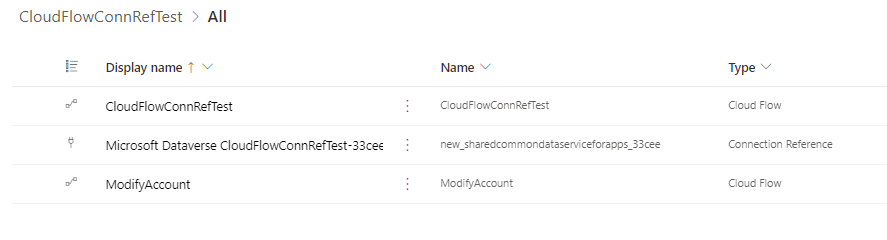
This flow should use the same connection, and connection reference when it is imported to the target environment. Quick check of both Cloud Flows reveal that in the source environment they both utilize same connection reference.

Time to start creating the deployment settings!
Export the solution from your source environment, and save it locally to your computer.
If you have not yet installed Power Platform CLI, you need to download and install it from here.
Once you have downloaded and installed it, open Command Prompt and browse to the location where you saved the solution file.
Use the following syntax for populating the deployment settings:
pac solution create-settings –solution-zip <solution_file.zip> –settings-file <settings_file.json>

Running this command will generate deployment settings -file with the filename you provided in the syntax. File should contain array of connection references (and environment variables), with Connection ID being empty. This is by design, as the source system does not know the Connection ID of the target environment.

By extracting the solution and opening customizations.xml -file, you can also confirm that the deployment settings has correct information.
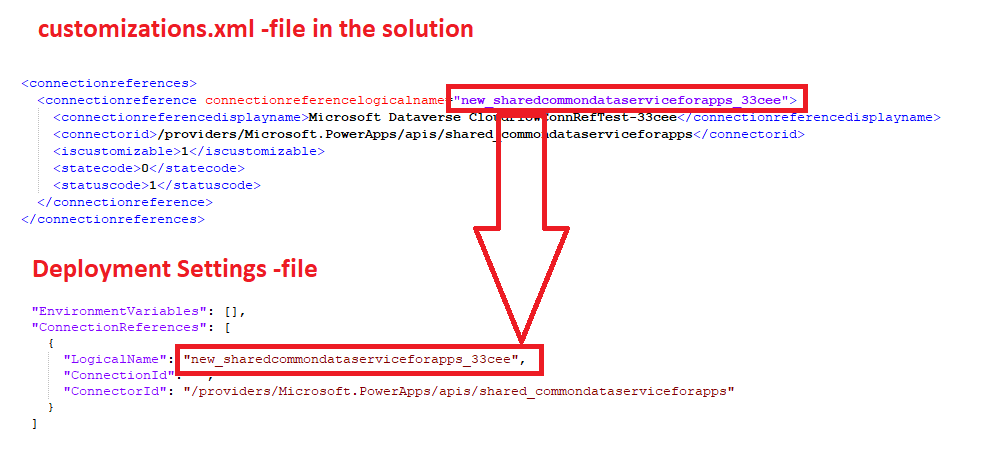
Next step is to find the Connection ID information from the target environment.
NOTE: If you are not the owner of the connection, you may not be able to see it in the connections list and therefore you won’t be able to fetch the Connection ID from the URL. I always recommend to create a simple canvas app to list connection references with Connection ID’s.
Just create a new canvas app, and add Vertical Gallery which uses Connection References as the data source.
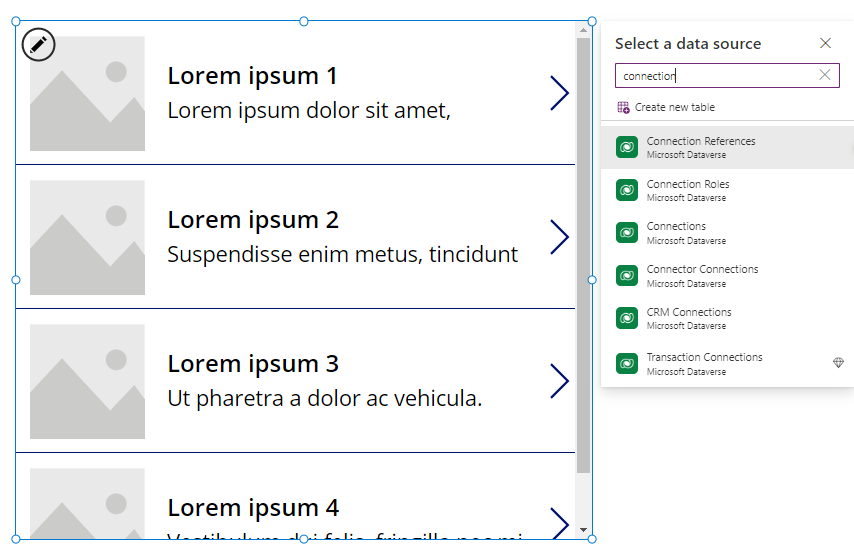
Run your app, and you have the Connection ID available for copying to clipboard.
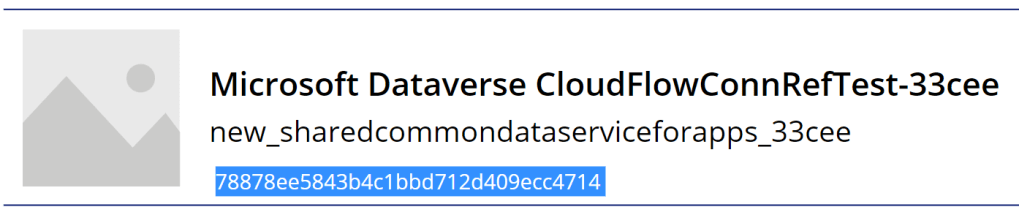
Enter that Connection ID to your deployment settings inside the correct section, and your file is ready!

I suggest choosing a naming convention for your deployment settings file so that you cannot accidentally configure settings for the wrong environment. Now let’s commit the file to the Git repo under the same folder where your solution is located.
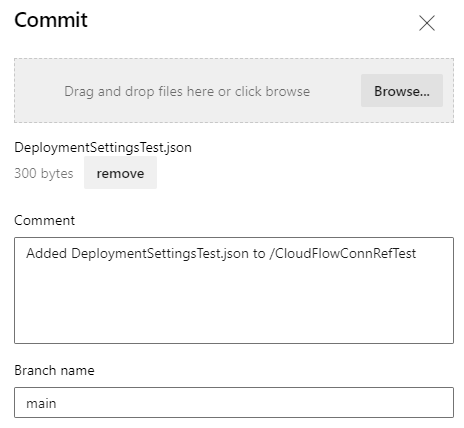
Your solution folder in Git will probably then look something like this.
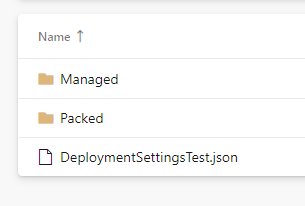
Now configure your Import Solution task to include Deployment Settings in your import

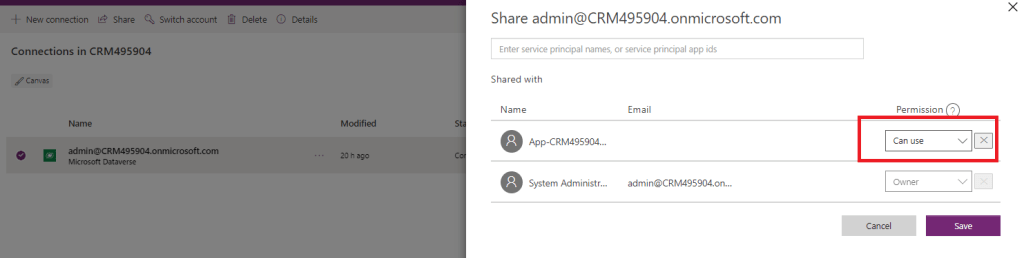
Before you start deploying your solution, there is one last configuration you need to do for each connection that is referenced by the connection references in your solution.
Common misunderstanding is that there would be a requirement for heavy scripting, or in worst case scenario different Cloud Flow to re-establish connections through impersonation etc. This is not the case nowadays.
In addition to handling connection references via deployment settings, you only need to share the connection with Can use -permission for the same Service Principal that is used for establishing the connection between DevOps and your Dataverse. If you don’t do this, your Cloud Flows connections will not be correctly set during the deployment, and you will most likely find yourself fixing those manually again while wondering what went wrong.
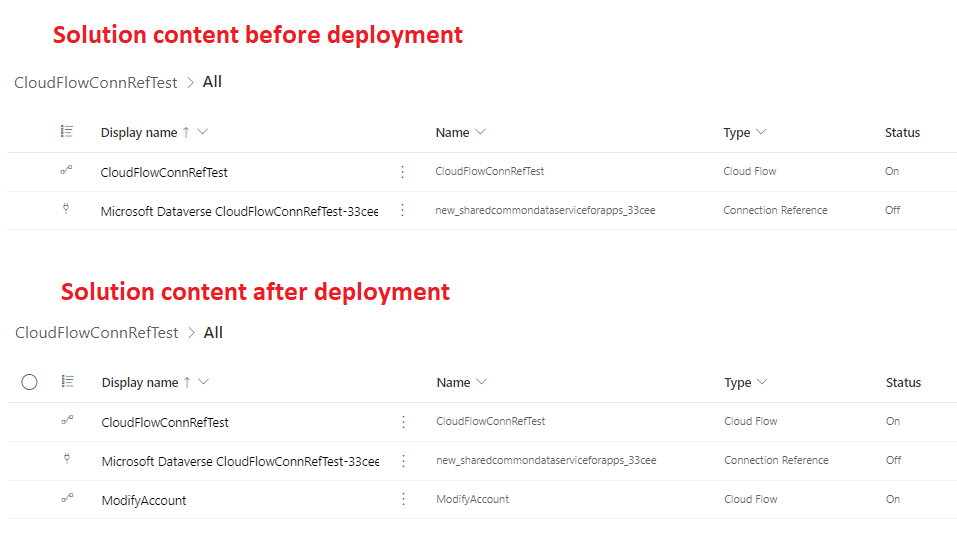
Now we can finally build and deploy the solution. I took the before & after comparison of the solution content, and Cloud Flow status. As you can see, existing Cloud Flow is still On, and new Cloud Flow is On right after deployment. No manual steps required! 🙂
Note that connection reference itself will always have the Off-status. This is by design, and it’s important to understand that as long as the Cloud Flow is still On, everything should be fine after the deployment.
I hope this article helps everyone who is struggling with Cloud Flows and Connection References!
 Dynamics Infinite - Blog by Tuomas Anto
One response to “Connection References in Azure DevOps, and why it matters”
Thanks a lot Tuomas! Even a dummy-user, like myself, could create a connection references in Azure DevOps easily. Clear and easy to understand
LikeLike